How to Build an E-commerce Website Using Templately Plugin: A Step-by-Step Guide
Posted On: June 26, 2026
Reading Time: 7 min read
Share:


Keep Up with Marketing Trends
Get the weekly newsletter
Table of Contents
- Build a Professional Online Store Without Coding
- Why Use Templately for E-commerce Websites?
- What You’ll Need Before Getting Started
- Step 1: Install Required Plugins
- Step 2: Activate the Templately Plugin
- Step 3: Open Templately
- Step 4: Select the WooCommerce Section
- Step 5: Select a Matching Template
- Step 6: Import the Template
- Need help with branding before this step?
- Step 7: Publish Your Website
- Step 8: Access and Manage Products from the Backend
- Need a More Advanced E-commerce Website?
- Ready to Build a Store That Stands Out?
- SEO Tips for Your E-commerce Website
- Conclusion
- FrequentlyAsked Questions!
Build a Professional Online Store Without Coding
Creating an eCommerce website has become easier than ever. With WordPress, WooCommerce, Elementor, and Templately, you can launch a fully functional online store without writing a single line of code.
Instead of spending weeks designing pages from scratch, Templately provides professionally designed WooCommerce templates that help you build and launch your online store in minutes.
Whether you’re starting a fashion store, electronics shop, beauty brand, or any other online business, this guide will show you exactly how to create an eCommerce website using Templately templates.
Why Use Templately for E-commerce Websites?
Building an online store from scratch requires time, technical knowledge, and design expertise. Templately simplifies the process by offering ready-made templates that can be imported and customized instantly.
Benefits of Using Templately
- No coding required
- Faster website development
- Professionally designed templates
- WooCommerce-ready layouts
- Mobile-responsive designs
- Easy customization with Elementor
- Beginner-friendly workflow
By using Templately, you can focus on growing your business instead of spending time on website development.
What You’ll Need Before Getting Started
Before building your online store, ensure you have:
- WordPress Website
- Elementor Plugin
- WooCommerce Plugin
- Templately Plugin
- Domain Name
- Web Hosting
Once these requirements are ready, you can begin building your eCommerce website.
Key Point: All six requirements above are non-negotiable. Missing any one of them will block you at a later step, so get these sorted before you begin.
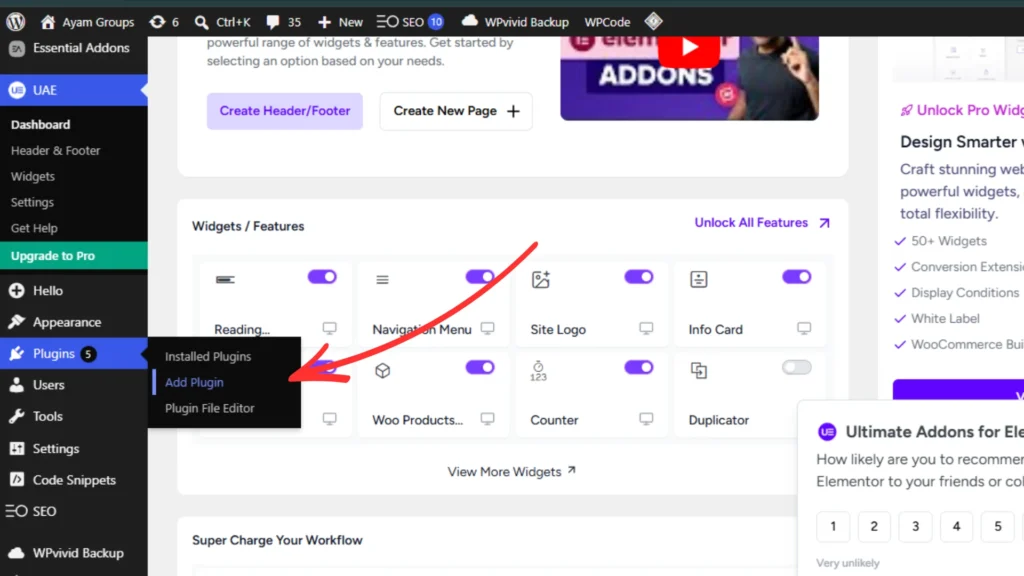
Step 1: Install Required Plugins
The first step is installing the plugins needed to create and manage your online store.
Navigate to:
WordPress Dashboard → Plugins → Add New
Install the following plugins:
- Elementor
- WooCommerce
- Templately
These plugins work together to provide website design functionality, eCommerce capabilities, and access to ready-made templates.
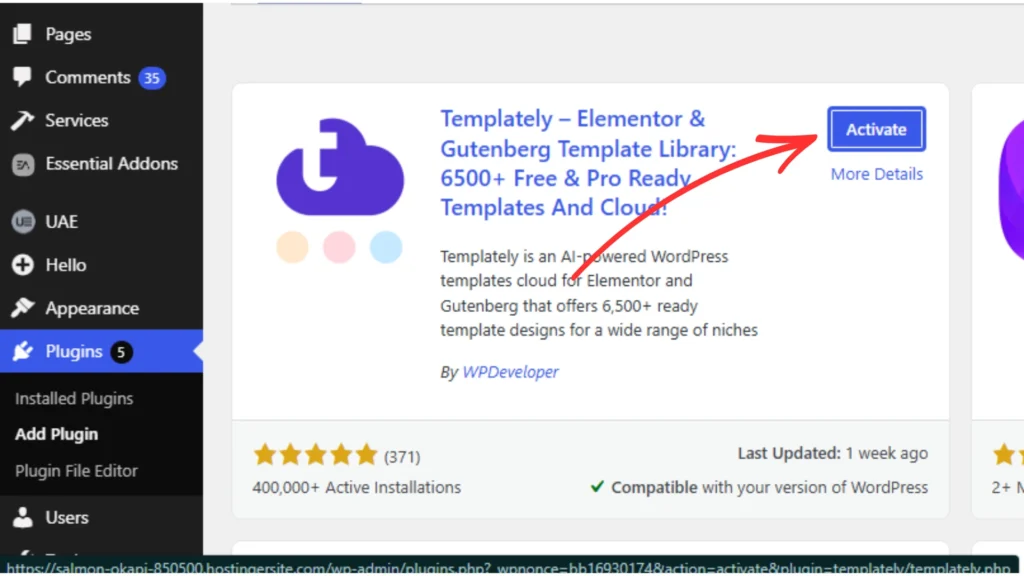
Step 2: Activate the Templately Plugin
After installing Templately, activate the plugin from your WordPress dashboard.
Once activated, you’ll gain access to Templately’s cloud workspace and template library, allowing you to browse and import professional website designs.
Pro Tip: Sign into Templately using your registered email so your imported templates and saved workspace sync across devices. This is especially useful if you manage multiple websites.
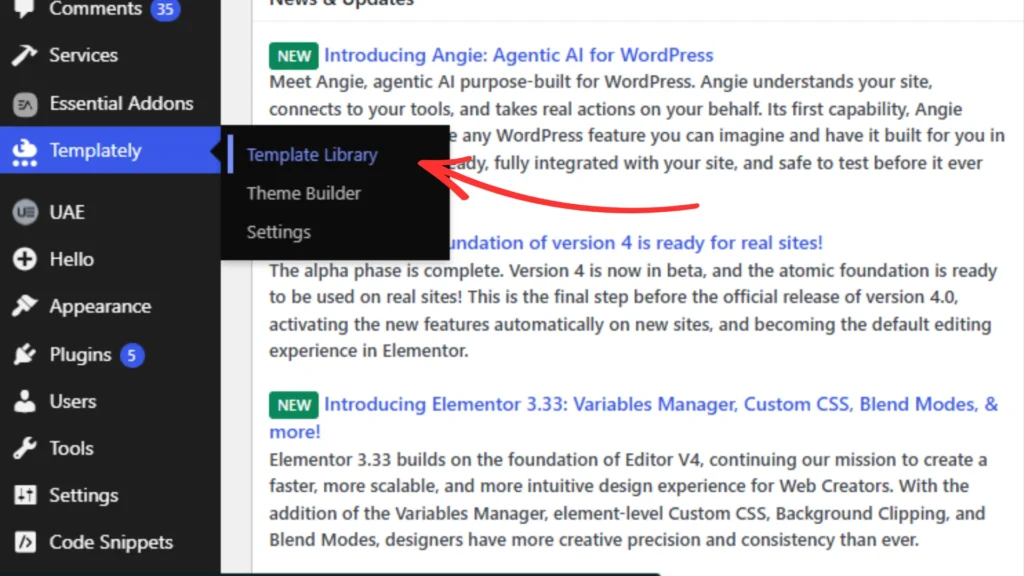
Step 3: Open Templately
After activation, open Templately from your WordPress dashboard.
The platform provides access to a wide collection of website templates designed for various industries and business needs.
From business websites to online stores, you’ll find templates ready for customization.
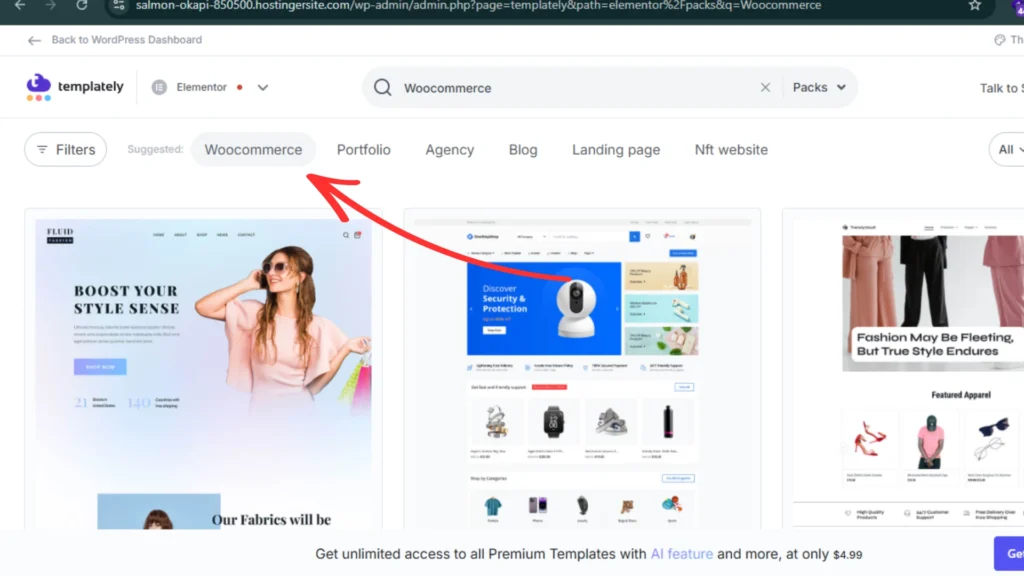
Step 4: Select the WooCommerce Section
Since you’re building an online store, navigate to the WooCommerce category within the Templately library.
This section contains templates specifically designed for eCommerce websites and includes:
- Homepage layouts
- Product pages
- Shop pages
- Cart pages
- Checkout pages
Using WooCommerce-specific templates helps ensure your store includes all the essential elements needed for selling products online.
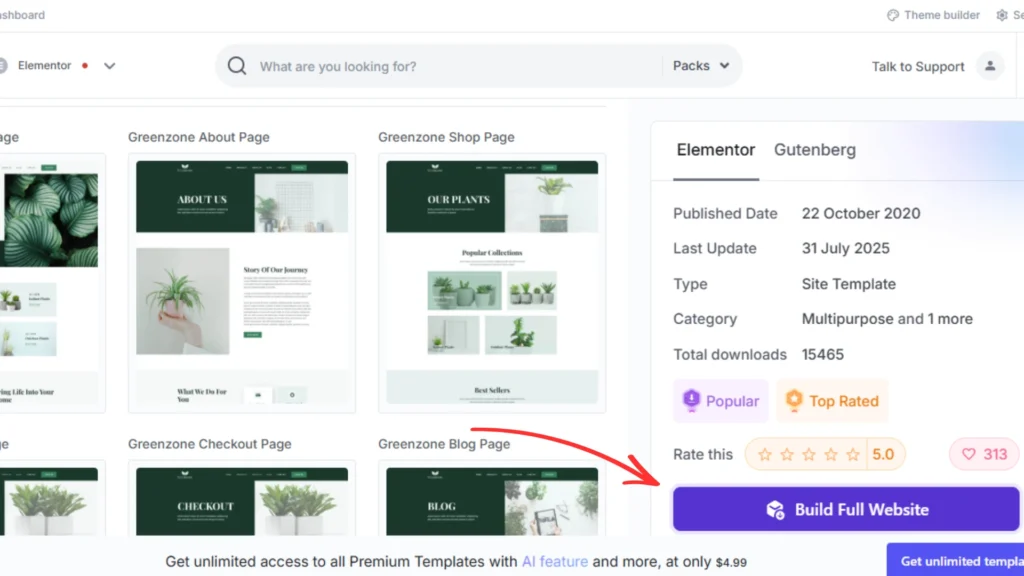
Step 5: Select a Matching Template
Browse through the available WooCommerce templates and select a design that best matches your business and branding.
When choosing a template, consider:
- Industry relevance
- Product showcase design
- Mobile responsiveness
- User experience
- Layout flexibility
Selecting the right template creates a strong first impression and improves the shopping experience for your customers.
Pro Tip
Choose a clean and user-friendly template that highlights your products and makes navigation simple for visitors.
Key Point: One-click import doesn’t just bring in visuals — it imports the full Elementor structure, meaning columns, spacing, fonts, and colour settings are all ready for you to customise.
Step 6: Import the Template
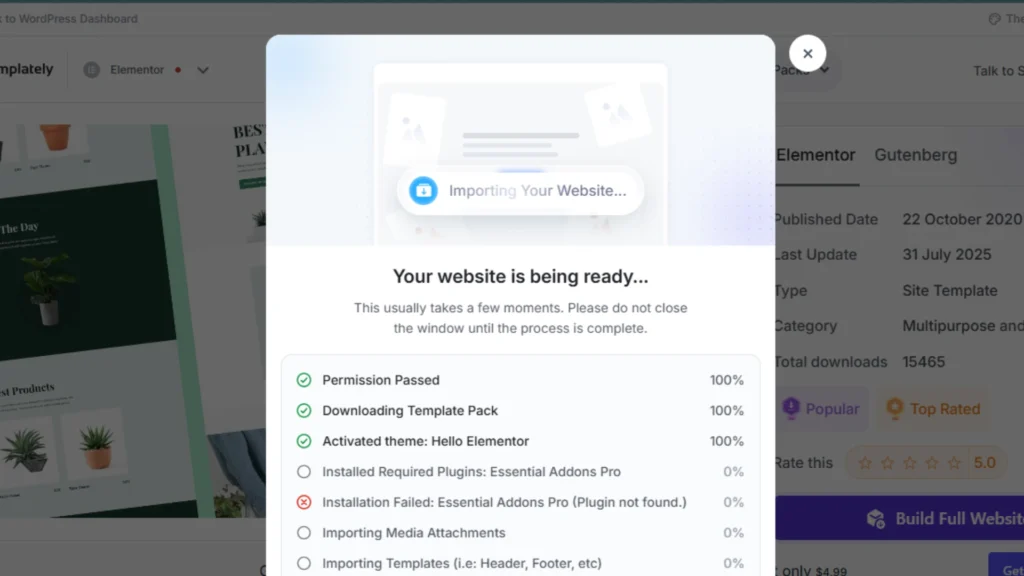
After selecting your preferred design, import the template into your website.
Templately’s one-click import feature automatically adds the template structure, design sections, and layout elements to your site.
This significantly reduces development time and helps you create a professional-looking online store faster.
Why Use Ready-Made Templates?
- Saves time
- Professional appearance
- Faster launch
- Consistent design
- Easy customization
Need help with branding before this step?
Our web design services at HapxDigital include full brand alignment across your store pages.
Step 7: Publish Your Website
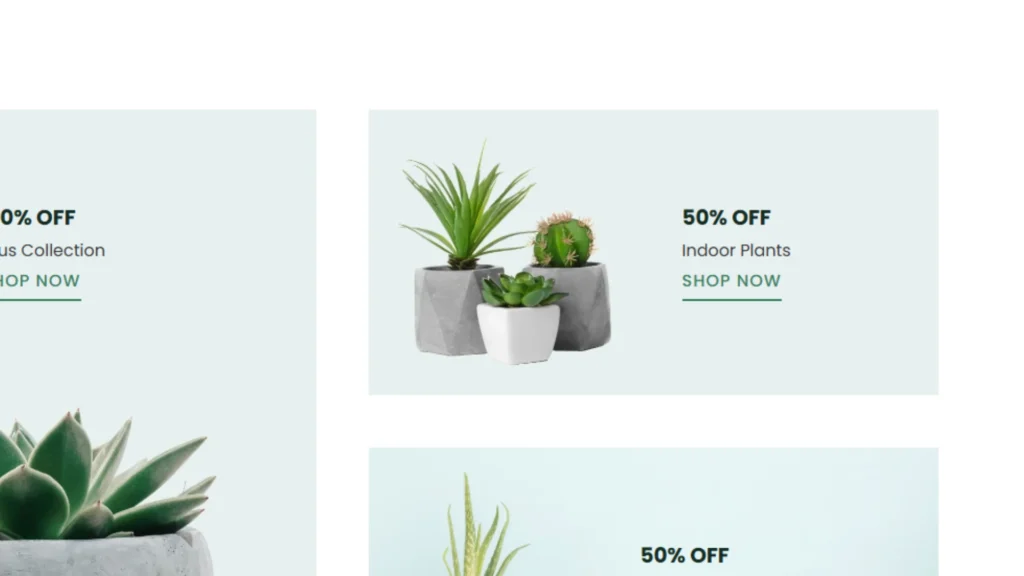
Once you’ve customized the content, branding, and images, it’s time to publish your website.
Before making your store live, review:
- Homepage content
- Product pages
- Contact information
- Navigation menus
- Mobile responsiveness
- Checkout functionality
After final checks, publish your website and make it accessible to customers worldwide.
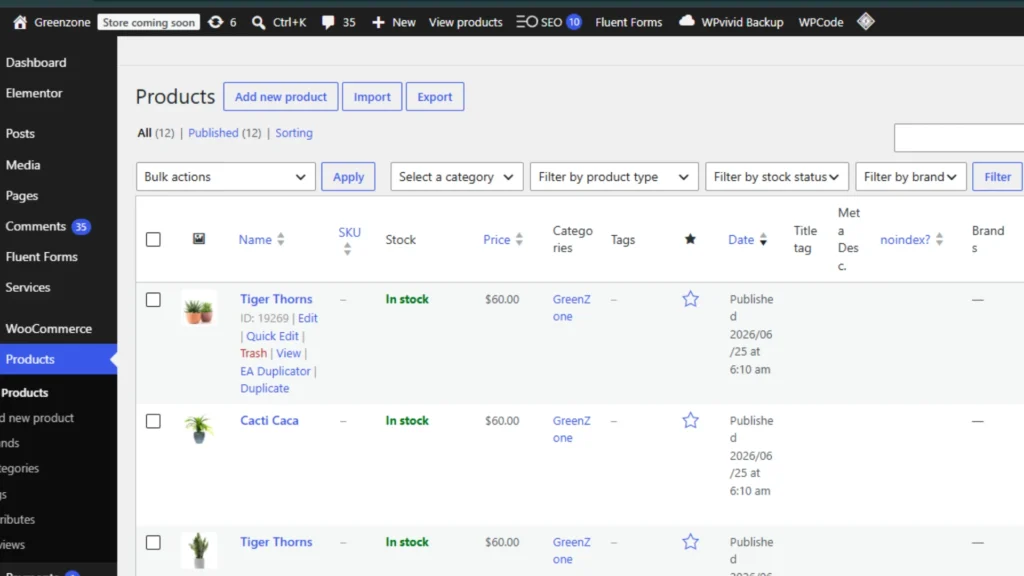
Step 8: Access and Manage Products from the Backend
After publishing your website, WooCommerce allows you to manage products directly from the WordPress dashboard.
You can:
- Add new products
- Edit product details
- Update pricing
- Manage inventory
- Create categories
- Process orders
This centralized dashboard makes managing your online store simple and efficient.
Need a More Advanced E-commerce Website?
Move beyond templates with custom WooCommerce solutions built for scalability, performance, and growth. From unique storefront designs to advanced integrations, we create eCommerce websites tailored to your business needs.
We Can Help You With:
- Custom WooCommerce Development
- Advanced Store Functionality
- Custom Checkout Experiences
- Third-Party Integrations
- Performance Optimization
- SEO-Friendly E-commerce Development
- Mobile-Optimized Shopping Experiences
Ready to Build a Store That Stands Out?
Whether you’re launching a new online business or upgrading an existing store, our team can create a custom eCommerce solution designed around your goals.
SEO Tips for Your E-commerce Website
A well-designed website is only effective if potential customers can find it through search engines. Follow these SEO best practices to improve visibility and attract organic traffic.
Use Keyword-Rich Product Titles
Include relevant search terms in your product titles to improve search engine rankings and attract targeted traffic.
Write Unique Product Descriptions
Avoid duplicate content and create original product descriptions that clearly explain product features, benefits, and specifications.
Optimize Product Images
Use descriptive file names (e.g., blue-leather-wallet.jpg) and add alt text to every image. This helps with both accessibility and image search visibility.
Improve Website Speed
Compress images, use quality hosting, and minimize unnecessary plugins to improve loading performance.
Create Internal Links
Link related products, categories, and blog posts to help users navigate your website and improve SEO performance.
Keypoints: SEO for eCommerce is an ongoing effort, not a one-time task. Setting up the basics at launch puts you ahead of most new stores from day one.
Conclusion
Building an eCommerce website no longer requires extensive technical expertise or a large development budget. With WordPress, WooCommerce, Elementor, and Templately, you can create a professional online store quickly using ready-made templates and an intuitive drag-and-drop editor.
By following the steps outlined in this guid, from installing the required plugins and selecting a WooCommerce template to importing your design, publishing your website, and managing products, you can launch a fully functional online store in a fraction of the time.
Whether you’re starting your first online business or expanding your digital presence, Templately provides a simple and efficient way to get your store online. And when you’re ready for advanced features, custom functionality, and a truly unique shopping experience, a custom-built eCommerce solution can help take your business to the next level.
At HapxDigital, we build custom WooCommerce stores designed around your specific business goals, from storefront design to backend integrations and performance optimisation.
Frequently
Asked Questions!
Can I build an eCommerce website without coding?
Yes. Templately, Elementor, and WooCommerce allow you to create a complete online store without coding knowledge.
Does Templately work with WooCommerce??
Yes. Templately offers WooCommerce-compatible templates designed specifically for online stores.
Can I customize imported templates?
Absolutely. You can edit text, images, layouts, colors, and sections using Elementor.
Are Templately templates mobile responsive?
Most templates are fully responsive and optimized for desktop, tablet, and mobile devices.
Is Templately suitable for beginners?
Yes. Templately is beginner-friendly and simplifies website creation through ready-made templates and one-click imports.