How to Create a Multilingual Website in Elementor Using Polylang
Posted On: August 17, 2026
Reading Time: 7 min read
Share:


Keep Up with Marketing Trends
Get the weekly newsletter
Table of Contents
- What is Polylang?
- Why Use Polylang With Elementor?
- Before You Start
- Step 1: Install Polylang in WordPress
- Step 2: Add English and Arabic
- Step 3: Configure the Language URLs
- Step 4: Create the Arabic Version of Your Pages
- Step 5: Create an Arabic Page
- Step 6: Translate the Page With Elementor
- Important Arabic Elementor Tip
- Step 7: Add the Language Switcher
- Step 8: Customize the Language Switcher
- Step 9: Test English and Arabic Switching
- Conclusion
- Want a multilingual site that actually converts?
- Frequently Asked Questions
Want to create an Arabic and English website in WordPress using Elementor? You can easily add a second language to your website with the Polylang plugin and create a simple language switcher for visitors.
In this guide, you’ll learn how to create a multilingual WordPress website with Elementor and Polylang, using English as the default language and Arabic as the secondary language.
We’ll cover the complete process, including installing Polylang, adding Arabic, translating Elementor pages, creating an Arabic version of your website, and adding a language switcher.
What is Polylang?
Polylang is a popular WordPress multilingual plugin that allows you to create content in multiple languages.
With Polylang, you can create separate versions of your WordPress pages for different languages. For example:
- English — /
- Arabic — /ar/
Visitors can then switch between English and Arabic using a language switcher.
When combined with Elementor, Polylang makes it easy to build and manage a multilingual Elementor website without creating a completely separate website for each language.
Key Point: Polylang doesn’t duplicate your whole site, it links each page to its translated version, so you manage everything from one WordPress dashboard.
Why Use Polylang With Elementor?
Elementor is used to design your website, while Polylang manages the different language versions.
Together, they allow you to:
- Create an English and Arabic WordPress website
- Translate Elementor pages
- Create separate Arabic pages
- Add an English/Arabic language switcher
- Display language names or flags
- Translate website content manually
- Create SEO-friendly language URLs
This setup is useful for business websites, service websites, company websites, blogs, WooCommerce stores, and websites targeting Arabic-speaking customers.
Before You Start
Before setting up your multilingual website, make sure you have:
- A WordPress website
- Elementor installed
- Polylang installed
- English website content ready
- Arabic translations ready
In this tutorial, we will use:
Default language: English
Secondary language: Arabic
Warnings:Always back up your website (files + database) before installing a new plugin like Polylang. Multilingual setups touch permalinks and page structure, so a backup gives you a safety net if something breaks.
Step 1: Install Polylang in WordPress
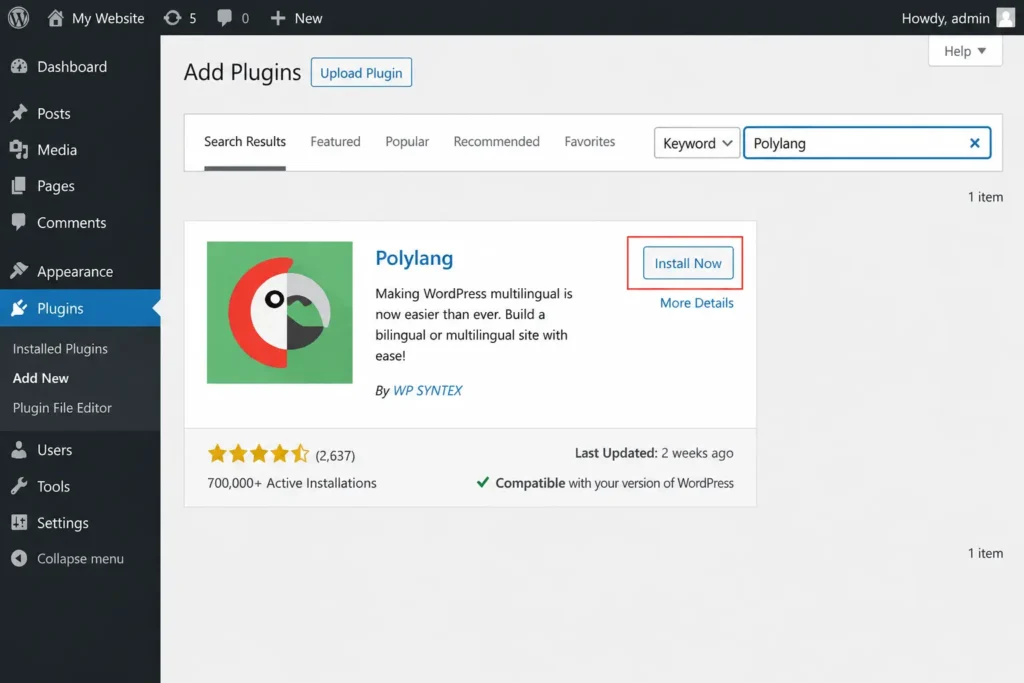
First, install the Polylang plugin.
Go to:
WordPress Dashboard → Plugins → Add New Plugin
Search for:
Polylang
Install and activate the plugin.
After activation, you will see a new Languages option in your WordPress dashboard.
Go to:
Dashboard → Languages
This opens the Polylang language management area.
Step 2: Add English and Arabic
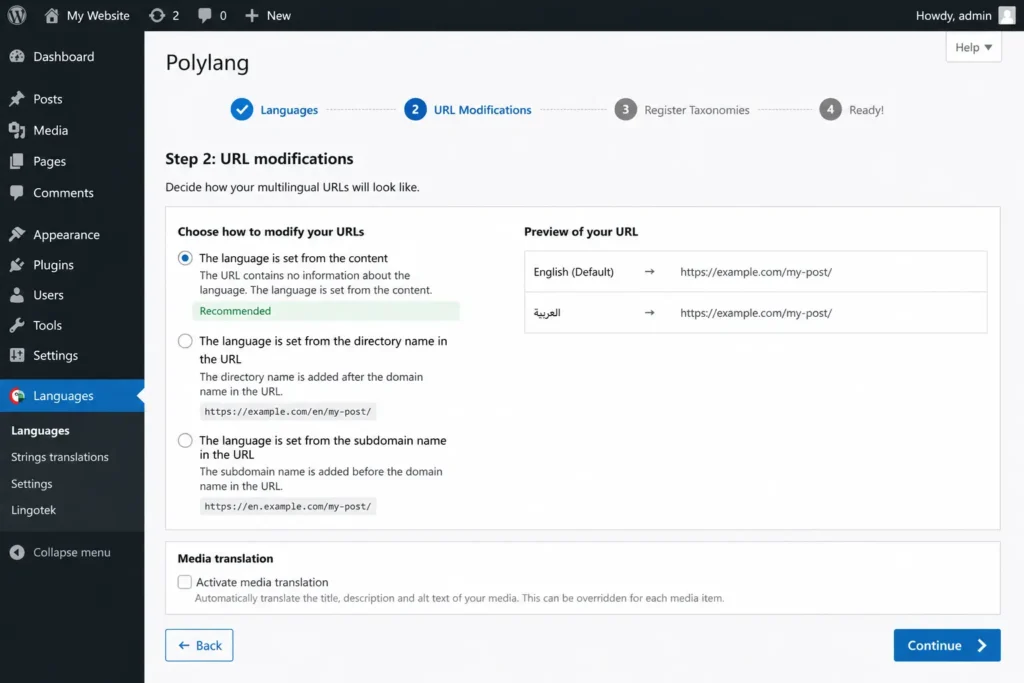
Now add the languages for your website.
Set:
English → Default Language
Then add:
Arabic → العربية
Your website will now have two languages:
English | العربية
If your existing website is already in English, keep English as the default language and use Arabic as the secondary language.
Keep Media Translation Simple
During the Polylang setup, you may see an option for media translation.
Tip: For a basic English and Arabic website, keep automatic media translation turned off. You can continue using the same images on both language versions unless you specifically need different images for each language, this saves setup time without hurting the user experience.
Step 3: Configure the Language URLs
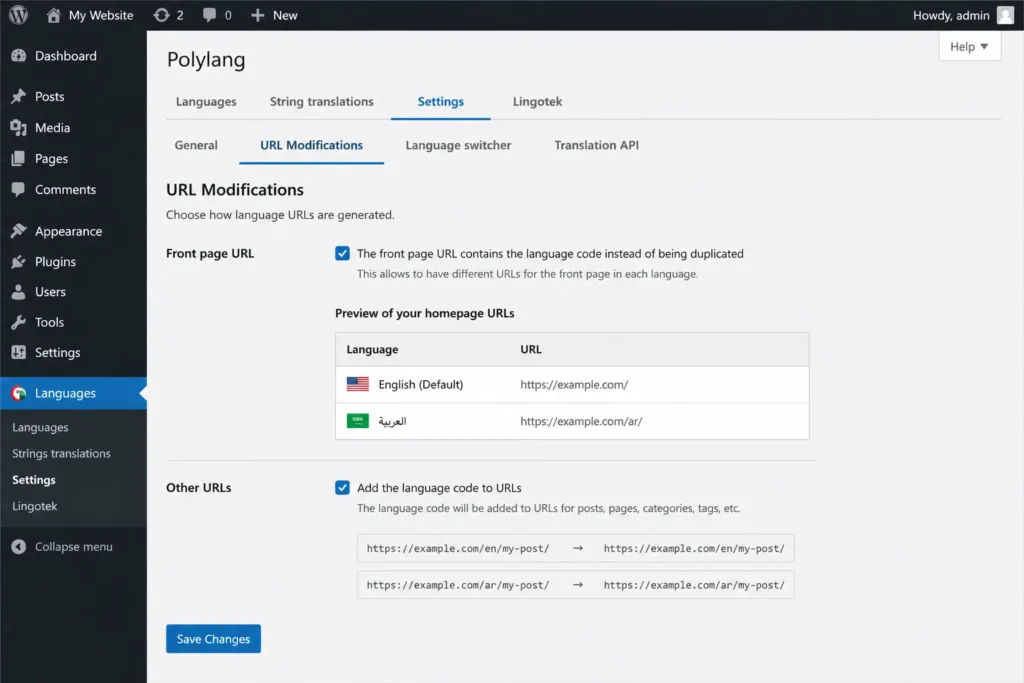
Next, configure how Polylang handles language URLs.
Go to:
Dashboard → Languages → Settings
Open:
URL Modifications
Make sure the option related to the Front page URL is enabled so the homepage works correctly when visitors switch languages.
Your URLs can look like:
English:
example.com/
Arabic:
example.com/ar/
Save your changes.
Pro Tip (SEO): Using a separate language URL such as /ar/ makes your website structure clearer for both visitors and search engines, and helps Google correctly index each language version separately.
Step 4: Create the Arabic Version of Your Pages
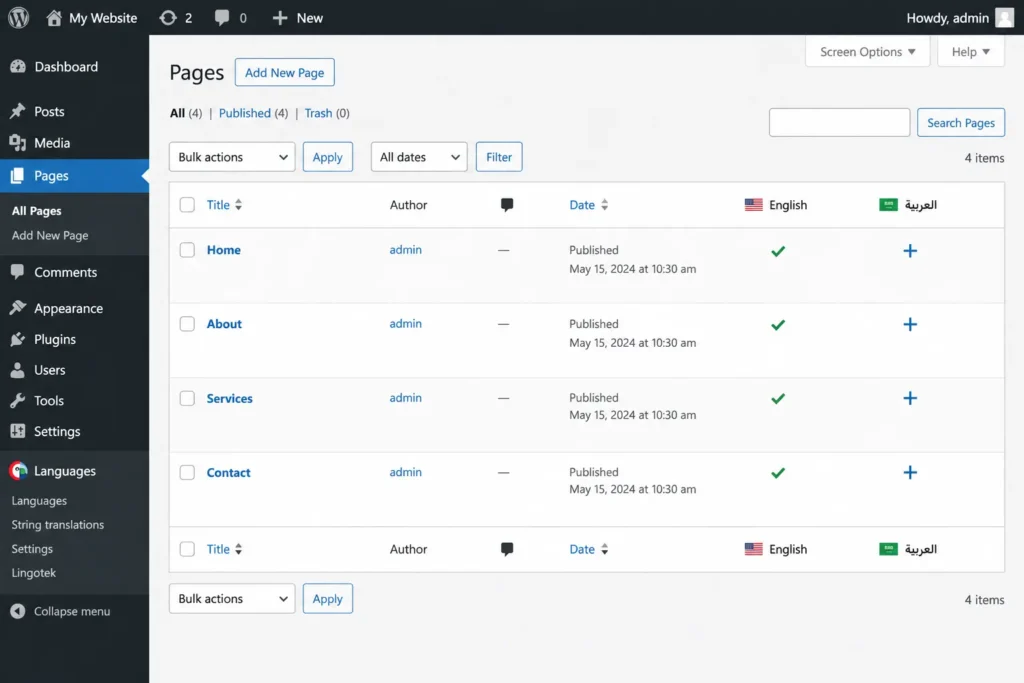
Now you can create Arabic versions of your existing pages.
Go to:
Dashboard → Pages → All Pages
You will see language indicators next to your pages.
For example:
| Page | English | Arabic |
| Home | ✓ | + |
| About | ✓ | + |
| Services | ✓ | + |
| Contact | ✓ | + |
The + icon means that an Arabic translation has not been created yet.
Step 5: Create an Arabic Page
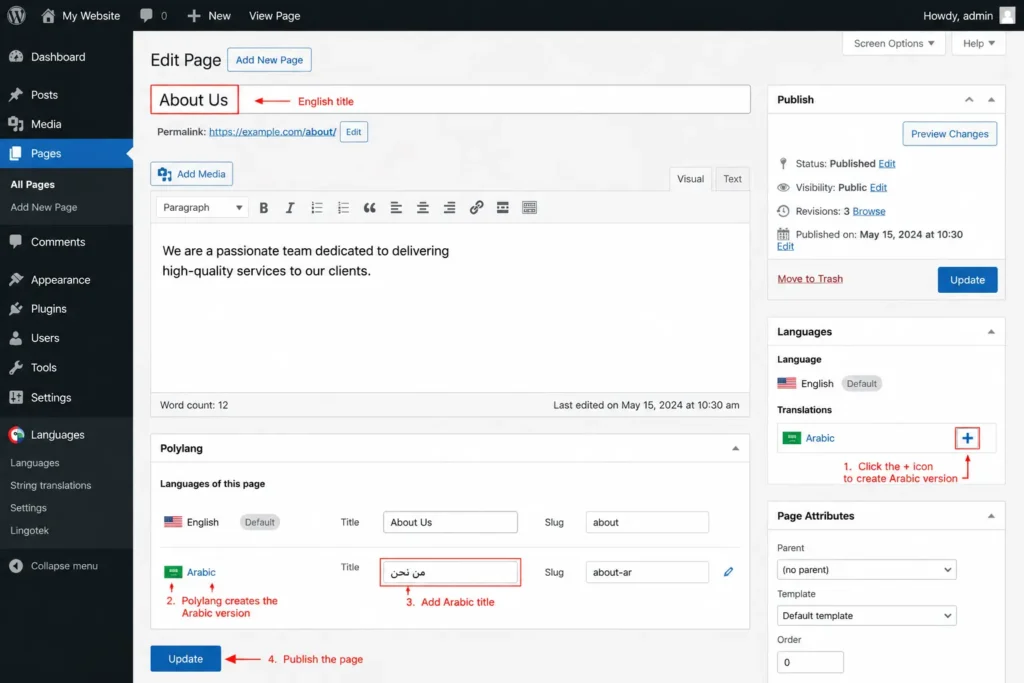
Open the page you want to translate.
For example:
Pages → About → Edit
In the Languages section, find Arabic.
Click the + icon next to Arabic.
Polylang will create a new Arabic version of the page.
Change the page title to the Arabic translation.
For example:
English: About Us
Arabic: من نحن
Then publish the page.
Your English and Arabic pages are now connected as translations.
Step 6: Translate the Page With Elementor
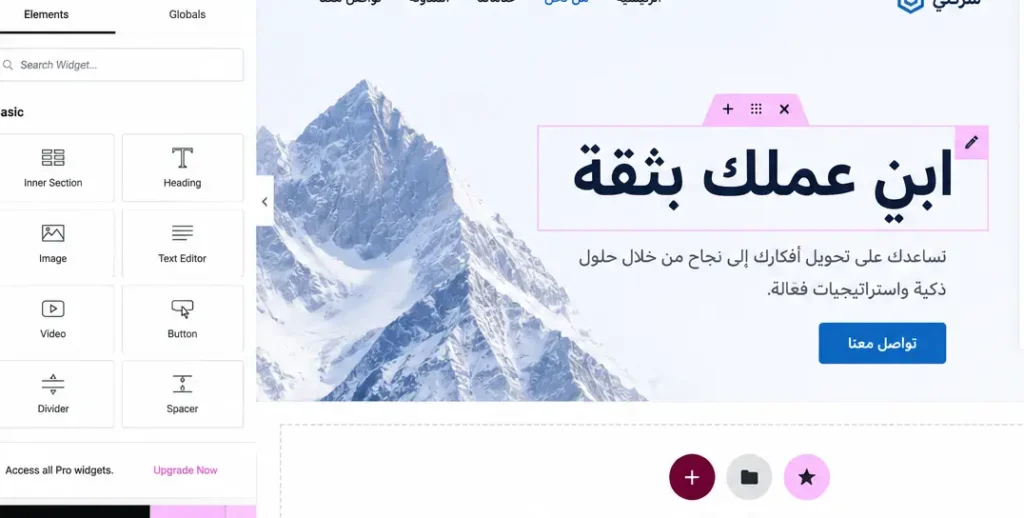
Open the newly created Arabic page.
Click:
Edit with Elementor
Elementor will open the Arabic version of the page.
Now replace the English content with the Arabic translation.
For example:
English:
Build Your Business With Confidence
Arabic:
ابنِ عملك بثقة
Translate the important content on the page, including:
- Headings
- Paragraphs
- Buttons
- Services
- Testimonials
- Forms
- Call-to-action text
- Footer content
After completing the translation, click Update.
Important Arabic Elementor Tip
Arabic is a right-to-left (RTL) language.
Make sure your Arabic version looks correct on the front end.
Check:
- Text alignment
- Navigation
- Buttons
- Icons
- Spacing
- Columns
- Forms
- Mobile layout
Your Arabic website should feel natural to Arabic-speaking visitors rather than simply being English content translated word-for-word.
Step 7: Add the Language Switcher
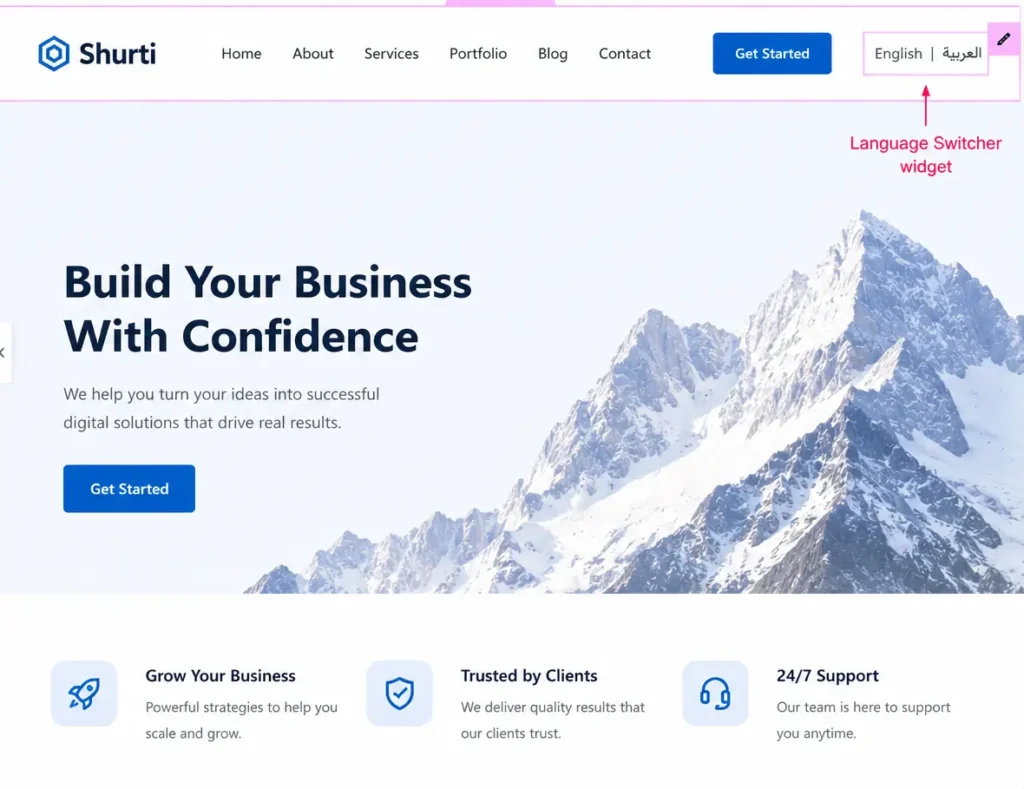
Now add a language switcher so visitors can switch between English and Arabic.
Open your Elementor header or footer.
Search for:
Language Switcher
Add the widget to your header.
A good location is usually near the navigation or CTA button.
For example:
Logo → Menu → CTA → English | العربية
The exact placement depends on your website design.
Step 8: Customize the Language Switcher
Keep the language switcher simple.
You can display:
English | العربية
or:
EN | AR
You may also use language flags if they fit your design.
Pro Tip: For a professional business website, a simple text-based switcher is often cleaner than a large dropdown. Make sure it works properly on mobile as well.
Step 9: Test English and Arabic Switching
After publishing the translated pages, test the language switcher.
Open your English homepage and select Arabic.
Check that it opens the correct Arabic homepage.
Then switch back:
Arabic → English
Repeat the test for important pages such as:
- Home
- About
- Services
- Contact
- Blog
- Products
Also check the navigation, buttons, forms, header, footer, and internal links.
Conclusion
Creating an English and Arabic multilingual website with Elementor and Polylang is a simple way to reach both English-speaking and Arabic-speaking visitors.
The basic process is:
Install Polylang → Add English & Arabic → Configure URLs → Create Arabic Pages → Translate With Elementor → Add Language Switcher → Optimize SEO → Test
The most important part is to make sure the Arabic version is not only translated but also properly optimized for RTL design, SEO, navigation, mobile responsiveness, and user experience.
With a properly configured Polylang setup, you can create a professional Arabic-English WordPress website with Elementor without maintaining two completely separate websites.
Want a multilingual site that actually converts?
HapX Digital handles the setup, RTL design, and SEO- end to end.
Frequently Asked Questions
Can I create an Arabic website with Elementor?
Yes. Elementor can be used to design Arabic pages, while Polylang can manage the English and Arabic versions of your WordPress website.
Can I use Polylang with Elementor?
Yes. Polylang can be used alongside Elementor to create and manage translated versions of Elementor pages.
How do I add Arabic to my WordPress website?
Install Polylang, add Arabic as a language, create Arabic translations of your pages, translate the content with Elementor, and add a language switcher to your header.
Can I create an English and Arabic website with Polylang?
Yes. You can set English as the default language and Arabic as the secondary language, then connect each English page with its Arabic translation.
Does Polylang automatically translate Elementor content?
No. You normally need to create the Arabic page and add the translated content manually.
Does Elementor support Arabic websites?
Yes. Elementor can be used to design Arabic websites, but you should check RTL layout, alignment, spacing, navigation, and mobile responsiveness carefully.
Is Arabic good for multilingual SEO?
Yes. An Arabic version of your website can help you target relevant Arabic search queries and Arabic-speaking audiences when the content and technical SEO are properly optimized.